Setup EA Account
✅ Follow these instructions exactly to log in safely. If you're confused, don’t worry — we’ve added GIFs to guide you!
Step 1: Go to EA Login Page
Open this link: https://www.ea.com/login
Enter the Username and password we gave you.
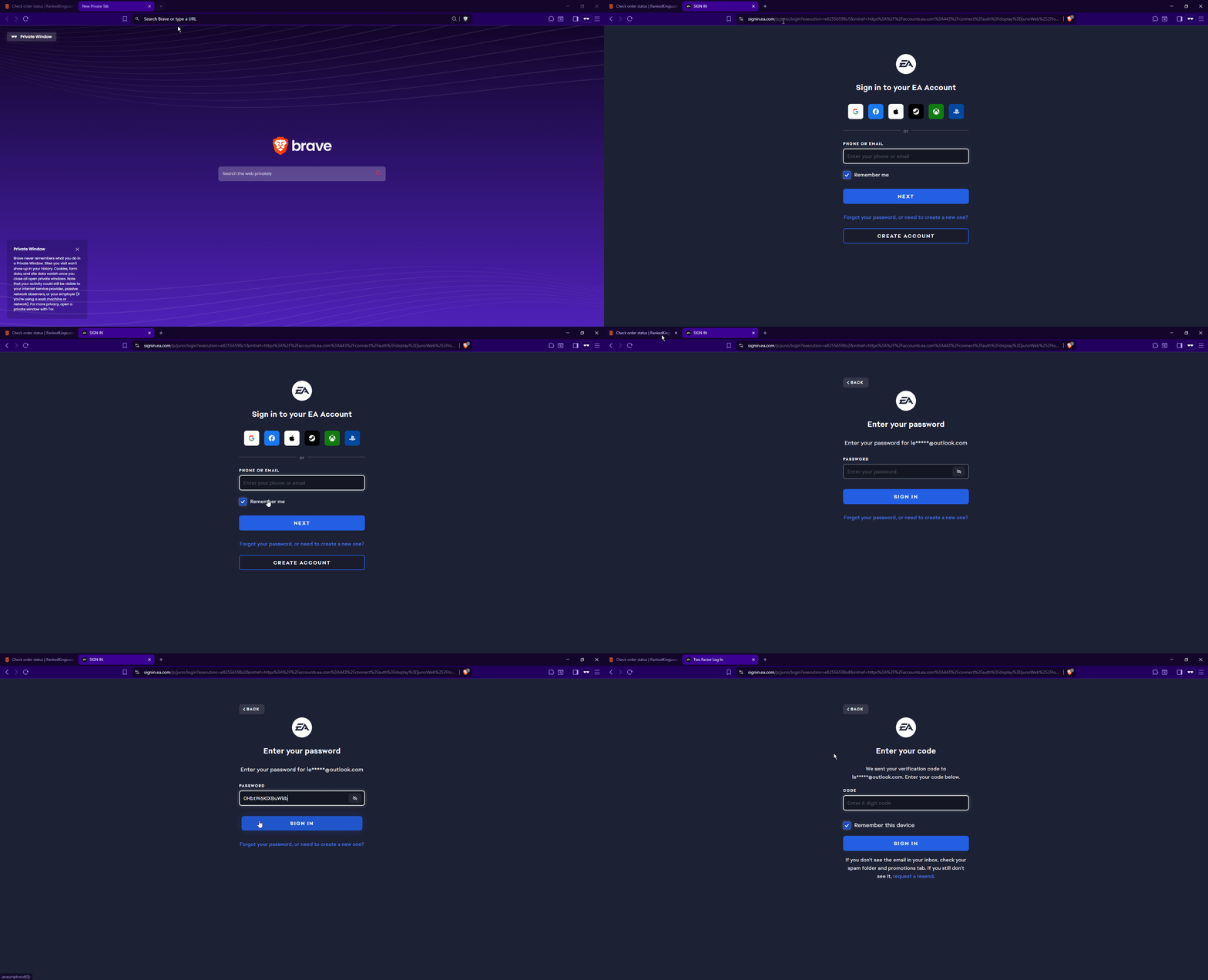
Step 2: Wait for the Security Code Email
After logging in, EA will say:
“We sent a security code to your email.”Open a new tab and go to: Sign in to Email
Once you're in Outlook, find the email from EA containing the 6-digit security code and enter it on the EA page
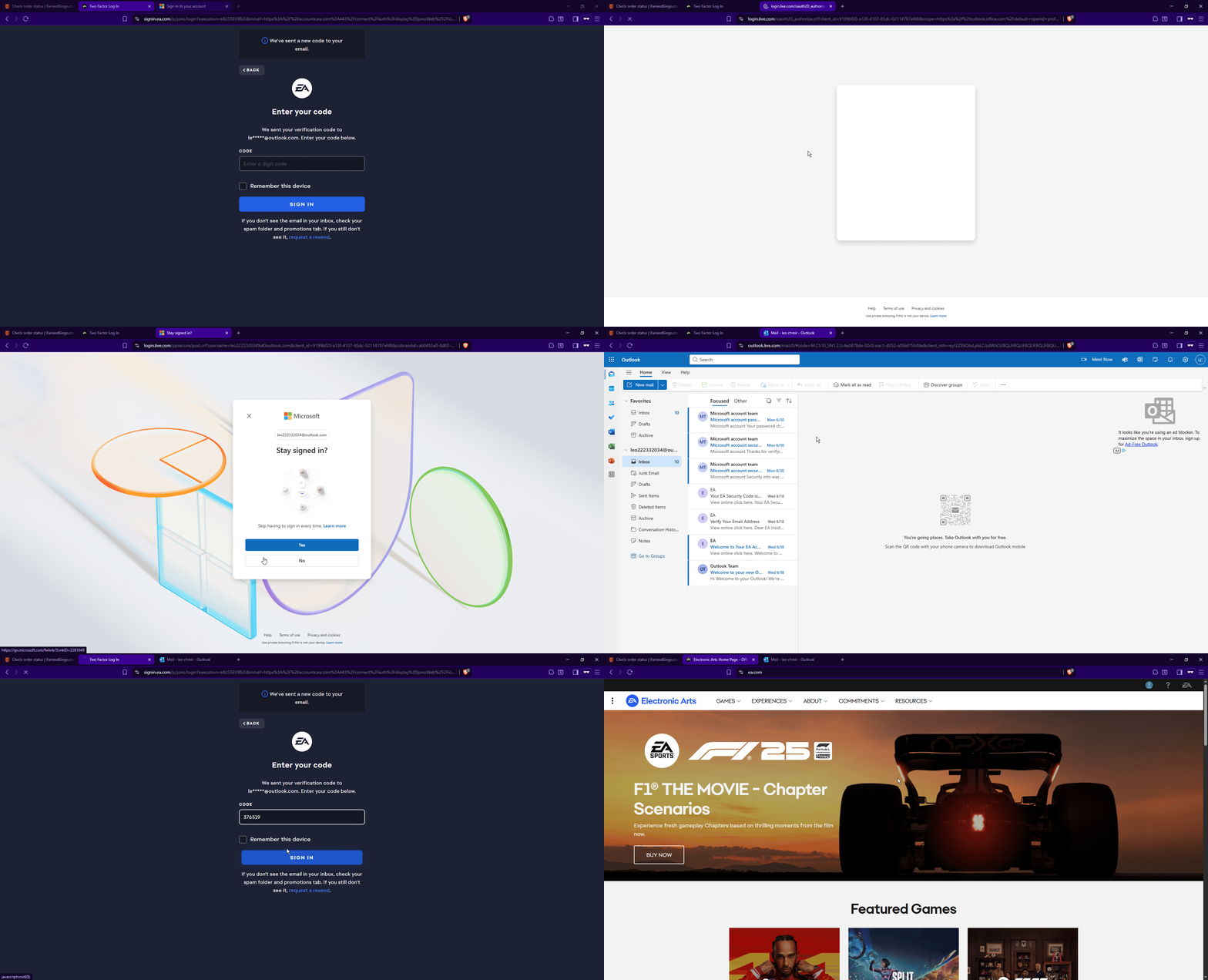
🔔 Note: If Outlook Asks to Verify Your Identity
Sometimes,when logging into Outlook, it will ask you to verify your identity before giving access.
You’ll see a screen like this:
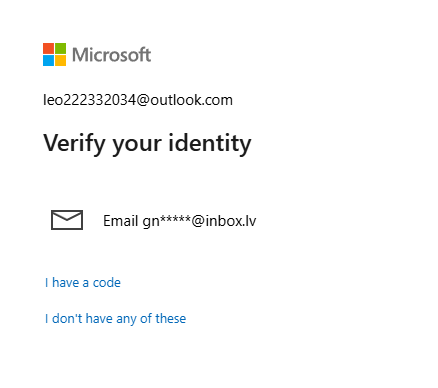
Here’s what to do:
Click on the inbox.lv email option (e.g.
gn*****@inbox.lv)Enter the recovery email we gave you then Click Send code
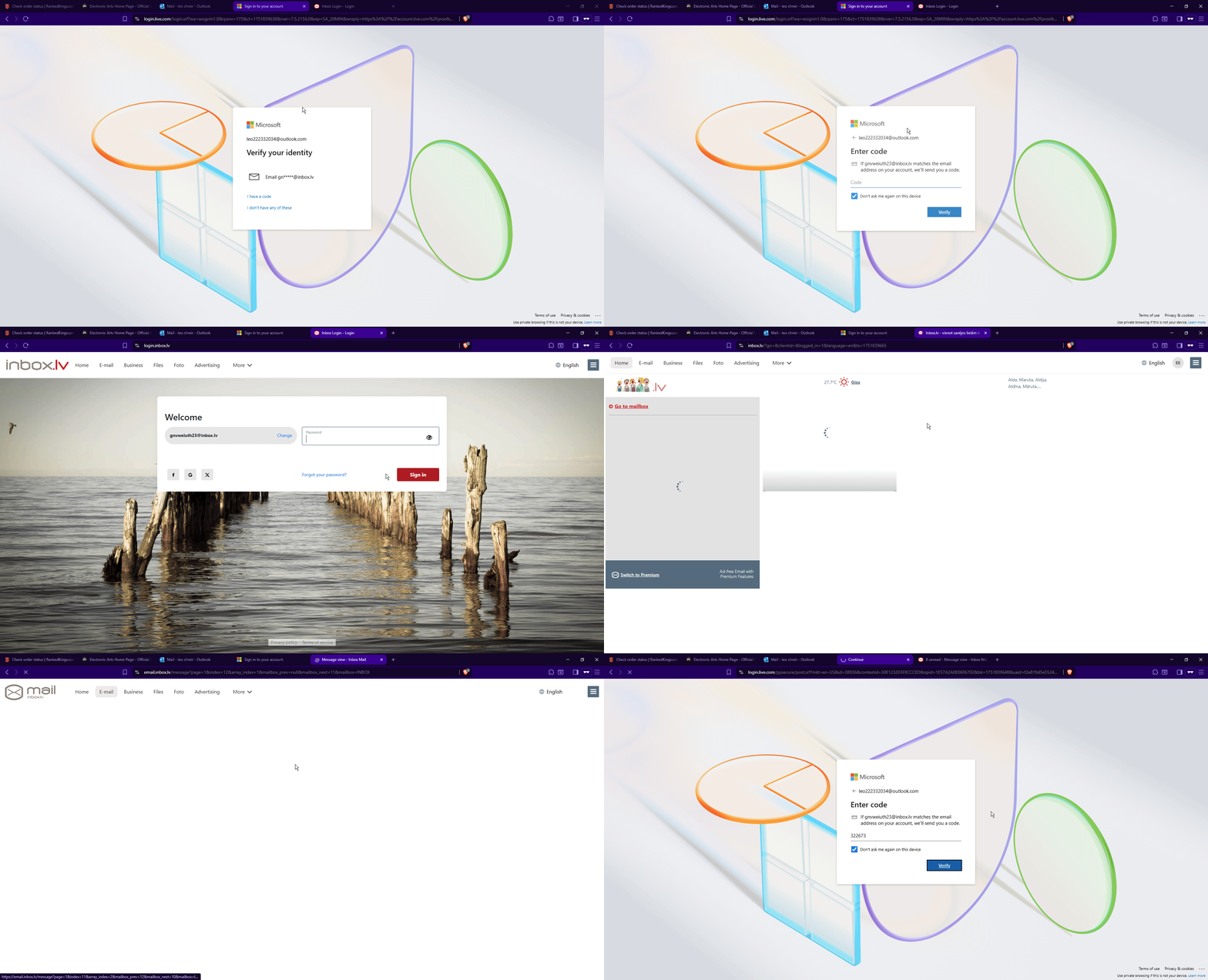
Open https://login.inbox.lv/ in a new tab
Log in using the Recovery email and Recovery email password we gave you
Find the email from Microsoft with the verification code
Copy the code and go back to Outlook
Paste the code to verify and access the inbox
📱 Note: If Inbox.lv Asks for Additional Verification
Sometimes, to access your inbox.lv email, the site might ask for extra verification.
You’ll see a message like:
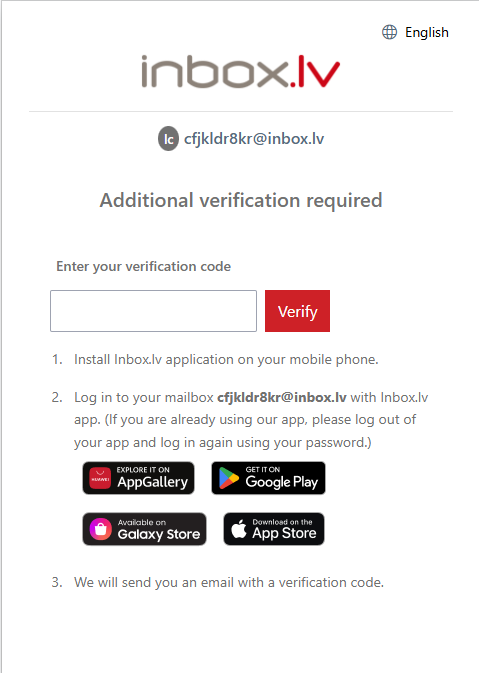
Here’s what to do:
Download and install the Inbox.lv app on your phone
2. Log in to the app using the inbox.lv email and password we gave you.
3. Once you're logged in on your phone:
Find the email with the verification code
Copy the code and paste it into the verification field
Click Verify
Then refresh the inbox.lv page on your computer — you should now be able to access your inbox.
Was this helpful?
Still need help? Ask the team